Thermal label printers are designed to make dispatch faster, but a small setting or media problem can quickly turn a simple shipping task into a pile of wasted labels. Blank labels, faded print, incorrect sizing, labels feeding too far and adhesive problems are all common issues when a thermal printing setup is not correctly matched to the label stock or shipping software.
If you are printing postage or courier labels for an ecommerce business, many thermal label problems can be fixed without replacing the printer. The key is to work through the problem systematically, starting with the label stock and printer setup before assuming the hardware has failed.
1. Your Thermal Labels Are Printing Blank
One of the most obvious thermal label problems is a completely blank label. A thermal printer does not use conventional ink or toner, so first check whether you are using labels designed for the printing method your printer supports.
For direct thermal printing, the label surface needs to react to heat from the printhead. If the wrong type of label is loaded, the printer can feed the stock normally while producing little or no visible print.
- Make sure the labels are compatible with your thermal printer.
- Check that the roll is loaded in the correct orientation.
- Confirm the printer is detecting the label stock correctly.
- Print a test page to separate a printer problem from a shipping-software problem.
If the printer’s own test output is also blank, investigate the media, printhead and printer settings before changing the shipping software.
2. The Printing Is Faded or Incomplete
Faded text or barcodes can be caused by incorrect print settings, a dirty printhead, unsuitable media or a printhead that is beginning to wear. A faint barcode is particularly important because a label that looks readable to a person may still be difficult for a scanner to read.
Start by cleaning the printhead according to your printer manufacturer’s instructions. Then check the print darkness or heat setting and printing speed. Some printers produce clearer output when the darkness is adjusted appropriately for the label stock.
Do not immediately set the printer to its highest heat level. Make small adjustments and run a test label after each change.
3. Your Shipping Label Is the Wrong Size
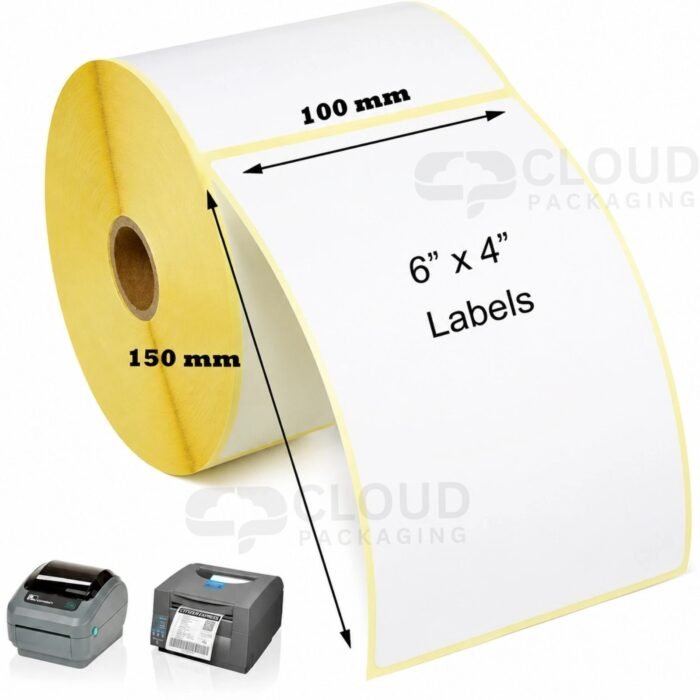
Incorrect label dimensions are one of the most common causes of thermal shipping label problems. A 4 x 6 inch shipping label is widely used for courier and ecommerce dispatch, but your shipping software, PDF viewer and printer driver all need to agree on the paper size.
If a label is tiny in one corner, cut off at the edge, stretched across multiple labels or printed over the gap between labels, check the document size and printer settings first.
For a standard 4 x 6 inch label, check that the printer driver is set to the correct label size, the shipping document uses the same dimensions, print scaling is set to 100% or Actual Size where appropriate, Fit to Page is disabled when it is not required, and the label width and height match the physical roll.
Cloud Packaging’s 4 x 6 inch thermal label rolls are 100 x 150mm and contain 500 labels per roll. Using the correct media size in the printer setup helps prevent the printer from treating the label as a different page format.
4. The Printer Keeps Skipping Labels
If your thermal printer feeds one or more blank labels between printed labels, the printer may not be detecting the gaps or marks between individual labels correctly. This can happen after changing the label stock or when the printer’s calibration no longer matches the media.
Check that the label roll is loaded straight and that the printer’s guides are positioned correctly. Then run the printer’s media calibration procedure if your model supports one.
Also check the selected media type and label dimensions in the driver. If the printer thinks it is using continuous media when it is actually using die-cut labels, its feeding behaviour can be incorrect.
5. Labels Are Printing Off-Centre or Sideways
When the content is shifted to one side, rotated or positioned incorrectly, the problem is usually related to page orientation, label dimensions, margins or the way the roll is aligned.
Check the shipping software and printer driver together rather than changing only one setting. The document should be created for the same orientation and dimensions as the physical label.
Also check the roll guides. A label roll that is sitting unevenly can cause inconsistent positioning even when the digital settings are correct.
6. Your Thermal Labels Are Not Sticking Properly
Printing correctly is only half the job. A shipping label also needs to stay attached throughout handling, sorting and delivery.
Before applying a label, make sure the packaging surface is clean, dry and reasonably flat. Dust, moisture, heavily textured cardboard and curved surfaces can all make adhesion more difficult.
Apply the label firmly and avoid placing it across a seam, fold or area where the packaging bends sharply. Do not cover important barcode information with tape or apply the label where it is likely to be damaged during normal handling.
If labels repeatedly peel away despite being applied to clean, suitable packaging, investigate whether the adhesive specification matches your application rather than assuming the printer is responsible.
7. The Printer Feeds Extra Blank Labels After Printing
If a job prints correctly but the printer then feeds an additional blank label, check the label size, media detection and calibration. Extra feeding can occur when the printer does not correctly identify the end of one label and the start of the next.
Reload the roll carefully, check the media settings and run a calibration cycle. If you have recently changed from one label size or type to another, recalibration is particularly important.
Print a simple test label before sending another full batch. This saves labels and makes it easier to identify whether the issue has actually been resolved.
8. Labels Keep Jamming or Feeding Unevenly
Repeated jams are worth investigating before continuing to print. Check that the roll is correctly seated, the guides are not squeezing the labels too tightly and there is no adhesive residue or debris around the feed path.
Also inspect the label stock itself. Damaged, curled or poorly wound rolls can cause feeding problems even when the printer is working correctly.
If the same printer works normally with another compatible roll, the media may be contributing to the problem. If several compatible rolls produce the same fault, the printer may need further maintenance.
How to Prevent Thermal Label Printing Problems
- Use the correct label stock: Match the labels to your printer’s printing method and supported dimensions.
- Keep the printer clean: Follow the manufacturer’s cleaning and maintenance guidance.
- Calibrate after changing media: Recheck the printer whenever you switch label size or stock type.
- Check print settings: Make sure the document size, printer driver and physical label dimensions agree.
- Store labels properly: Keep unused rolls clean and dry and follow the supplier’s storage recommendations.
- Test before a large batch: A single test label can prevent dozens of incorrectly printed labels.
Choosing the Right Thermal Labels for Shipping
For businesses printing shipping labels every day, consistency matters as much as price. The label needs to fit the printer, match the shipping platform’s format and provide reliable print quality and adhesion for the packaging you use.
Cloud Packaging supplies 4 x 6 inch thermal label rolls in a 100 x 150mm format, with 500 labels per roll and a 25mm core. They are designed for businesses that regularly print postage, shipping and parcel address labels.
If you are also packing fragile products, see our guide on how to pack fragile items for shipping. For the wider packaging decision, see our guide to choosing the right packaging for different product types.
Final Checklist
When a thermal shipping label is not printing correctly, work through the basics before replacing equipment: check the label stock, roll orientation, label dimensions, printer driver, print scale, calibration and printhead condition. If the printer is producing a good test print but the shipping label is wrong, focus on the document and software settings. If the printer cannot produce a clear test print, investigate the printer and media instead.
Getting these basics right can reduce wasted labels, prevent dispatch delays and keep your shipping workflow moving smoothly.








 Bubble Envelopes
 Mailing Bags
 Bubble Wrap Rolls
 Bubble Wrap Bags
 Bubble Envelopes
 ECOFLO Loose Fill Packing Peanuts
 Grip seal bags
 Arofol Bubble Bags
 Layflat Tubing Heavy duty
 Layflat Tubing Medium duty